
Using Meftah MCP with AI Assistants

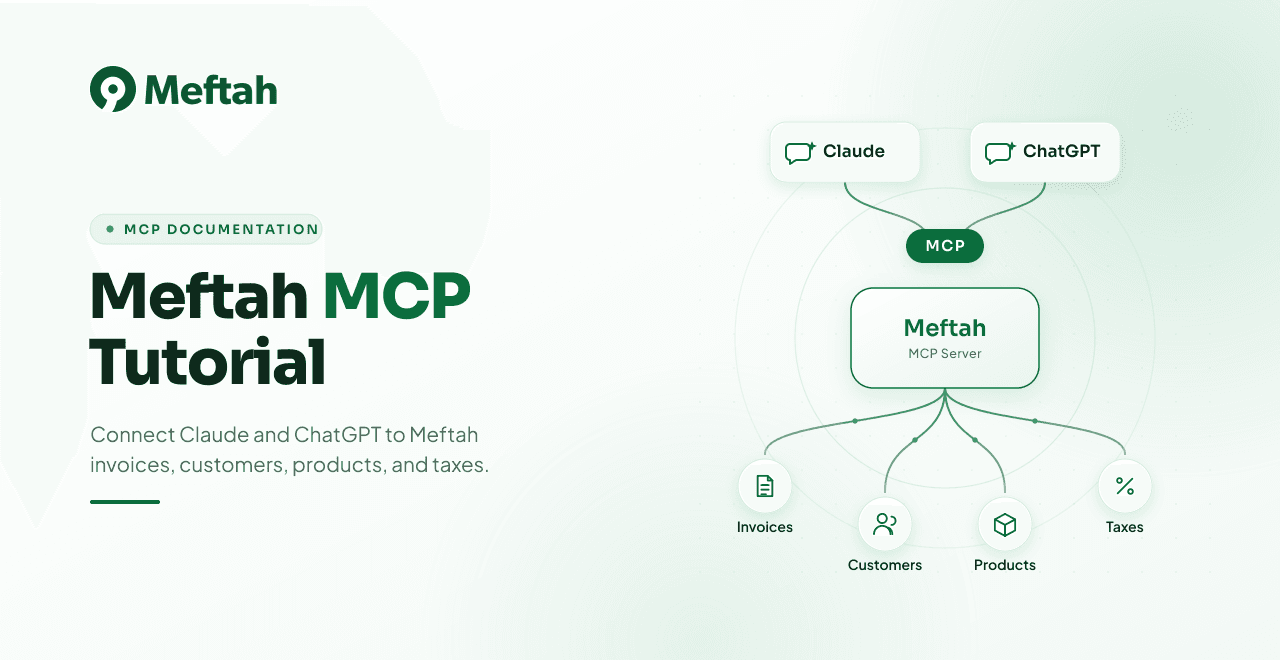
This tutorial explains how to connect the Meftah MCP server to AI assistants and use it to work with customers, products, taxes, and invoices. It includes general MCP usage plus specific guidance for Claude and ChatGPT.
What Is Meftah MCP?
Meftah MCP is a Model Context Protocol server that lets an AI assistant call Meftah business tools on your behalf. After you connect your Meftah account, the assistant can search data, create records, update invoices, and send invoices through Meftah.
The Cloudflare Worker exposes these endpoints:
- MCP endpoint:
https://mcp.meftah.app/mcp - OAuth authorization metadata:
https://mcp.meftah.app/.well-known/oauth-authorization-server - OAuth protected resource metadata:
https://mcp.meftah.app/.well-known/oauth-protected-resource
When an assistant connects, Meftah MCP asks for your Meftah tenant subdomain, redirects you to Meftah login, and stores a temporary MCP session token. The session token is valid for 30 days.
Available Tools
The MCP server currently exposes these tools:
| Tool | Purpose |
|---|---|
meftah_create_customer | Create a new customer in Meftah. |
meftah_create_product | Create a new product or service. |
meftah_create_invoice | Create an invoice. |
meftah_find_customers | Search customers by name. |
meftah_find_products | Search products or services by name. |
meftah_find_taxes | Search taxes by name, or list all taxes if no filter is provided. |
meftah_list_invoices | List invoices. |
meftah_update_invoice | Update an existing invoice. |
meftah_send_invoice_to_customer | Email an invoice to the customer. |
meftah_send_invoice_to_zatca | Submit an invoice to ZATCA. |
Important Rules
- Your tenant is the first part of your Meftah URL. For
https://demo.meftah.app, the tenant isdemo. - Invoice status values are
0Draft,1Pending,2Paid,3Overdue, and4Cancelled. - Payment terms are
0Due on Receipt,15Net 15,30Net 30,45Net 45,60Net 60, and90Net 90. - The invoice title is set by Meftah. Do not ask the assistant to send an invoice title.
- If an invoice line uses
productName, the server searches for that product first. If it does not exist, it can create the product and use the returned product ID. - Content changes to invoices, such as amounts, dates, currency, and line items, require the invoice to be in Draft status.
- Paid and Cancelled invoices are terminal states.
- ZATCA-submitted invoices are locked. To reverse or adjust them, create a credit or debit note instead of editing the original invoice.
General MCP Setup
Use this section for any MCP-compatible client.
-
Open your MCP client settings.
-
Add a new remote MCP server.
-
Use this server URL:
https://mcp.meftah.app/mcp -
Start the connection or authorization flow.
-
Enter your Meftah tenant subdomain when prompted.
-
Sign in to Meftah and approve access.
-
Return to the assistant and confirm that Meftah tools are available.
After connection, test with a read-only request:
List my latest Meftah invoices.
or:
Search Meftah customers for "Acme".
Using Meftah MCP with Claude
Claude supports remote MCP servers in supported Claude clients and plans.
Connect in Claude
-
Open Claude.
-
Go to settings for connectors, integrations, or MCP servers.
-
Add a custom MCP server.
-
Enter:
https://mcp.meftah.app/mcp -
Continue through the authorization flow.
-
When the Meftah connection page appears, enter your tenant subdomain.
-
Sign in to Meftah and authorize access.
-
Return to Claude and check that the Meftah tools are enabled.
Claude Example Prompts
Search before creating:
Use Meftah to search for a customer named Gulf Trading.
If the customer does not exist, create it with contact name Ahmed Saleh,
email [email protected], and phone +966500000000.
Create a product:
Create a Meftah product called Consulting Hour with unit price 350 SAR.
Use Hour as the unit of measurement.
Create an invoice:
Create a draft Meftah invoice for customer ID 123.
Currency is SAR. Invoice date is 2026-05-30 and due date is 2026-06-14.
Add one line item for Consulting Hour, quantity 3, unit price 350.
Subtotal is 1050, tax is 157.5, and total is 1207.5.
Update invoice status:
Mark invoice ID 00000000-0000-0000-0000-000000000000 as paid in Meftah.
Send an invoice:
Send invoice ID 00000000-0000-0000-0000-000000000000 to the customer by email.
Submit to ZATCA:
Submit invoice ID 00000000-0000-0000-0000-000000000000 to ZATCA.
Before submitting, confirm the invoice status and total amount with me.
Using Meftah MCP with ChatGPT
ChatGPT support depends on your plan, workspace settings, and whether your workspace has ChatGPT apps, custom MCP apps, or developer mode enabled. Current OpenAI documentation uses "apps" for what were previously called connectors. OpenAI documents that custom apps can use MCP, workspace admins can control app availability and actions, and write/modify actions may require extra review or confirmation.
Useful OpenAI references:
- ChatGPT apps overview:
https://help.openai.com/en/articles/11487775-connectors-in-chatgpt - Developer mode and full MCP apps:
https://help.openai.com/en/articles/12584461-developer-mode-apps-and-full-mcp-connectors-in-chatgpt-beta - Building MCP servers for ChatGPT apps and API integrations:
https://developers.openai.com/api/docs/mcp
Direct MCP Connector Setup
Use this path when ChatGPT shows an option to add a custom app, connector, MCP app, or remote MCP server.
-
Open ChatGPT settings or workspace app and connector settings.
-
Add or import a custom app, custom connector, or MCP server.
-
Enter:
https://mcp.meftah.app/mcp -
Complete the OAuth flow.
-
Enter your Meftah tenant subdomain.
-
Sign in to Meftah and approve access.
-
If you are in a Business, Enterprise, or Edu workspace, ask an admin to enable or publish the app if required.
-
Start a chat and select or mention the Meftah app when asking ChatGPT to use it.
Custom GPT Actions Alternative
Use this path if your ChatGPT interface supports Custom GPT Actions but not remote MCP.
- Create a small API proxy that exposes the specific Meftah operations you want as REST endpoints.
- In the Custom GPT builder, add those endpoints as Actions using an OpenAPI schema.
- Configure OAuth or bearer-token authorization for the action.
- In the GPT instructions, tell ChatGPT when to use each Meftah action.
Recommended instruction text:
Use Meftah tools for customer, product, tax, and invoice operations.
Before creating or updating financial records, summarize the planned action and ask for confirmation.
Use read-only tools first when the user asks to find, check, list, or verify data.
Never submit an invoice to ZATCA without explicit confirmation.
ChatGPT Example Prompts
Find Meftah customers matching "Future Systems" and show their IDs.
Create a new Meftah customer:
Company: Future Systems LLC
Contact: Sara Khan
Email: [email protected]
Phone: +966511111111
Customer type: B2B
Create a SAR invoice in Meftah for customer ID 456.
Date: 2026-05-30
Due date: 2026-06-29
Payment terms: Net 30
Line item: Monthly support, quantity 1, unit price 2000
Tax: 300
Total: 2300
Keep it as Draft.
List my Meftah invoices and identify which ones are still Draft or Pending.
Recommended Safety Practices
- Start with search and list operations before creating or updating records.
- Ask the assistant to show the exact customer ID, product ID, invoice ID, totals, tax, and due date before creating an invoice.
- Require explicit confirmation before sending invoices by email.
- Require explicit confirmation before submitting anything to ZATCA.
- Keep invoice amounts consistent:
subtotalAmount + taxAmount - discountAmount = totalAmount. - Use Draft status while reviewing invoice content.
Troubleshooting
| Problem | What to check |
|---|---|
| The assistant cannot connect | Confirm the server URL is https://mcp.meftah.app/mcp. |
| Authorization fails | Confirm the tenant subdomain is correct and that the Meftah account can log in normally. |
| Tools are missing | Disconnect and reconnect the MCP server, then start a new chat. |
| A request returns unauthorized | The 30-day session may have expired. Reconnect the MCP server. |
| Invoice update fails | Check whether the invoice is Draft. Content edits require Draft status. |
| ZATCA edit fails | ZATCA-submitted invoices are locked by design. Use a credit or debit note. |
| Product line item fails | Search or create the product first, then retry with the product ID. |